
Download What ToDo – Simple, Free Task Management Software for Windows
Overview
Staying focused and getting things done is a daily challenge for anyone who juggles multiple projects, deadlines, and personal commitments. While the market is flooded with complex task‑management platforms, many users simply need a clean, lightweight tool that lets them capture ideas, break them into subtasks, and track progress without a steep learning curve. What ToDo answers that call with a minimalistic interface, folder‑based organization, and essential features such as due‑date calendars, color‑coded priority tags, and easy import/export capabilities.
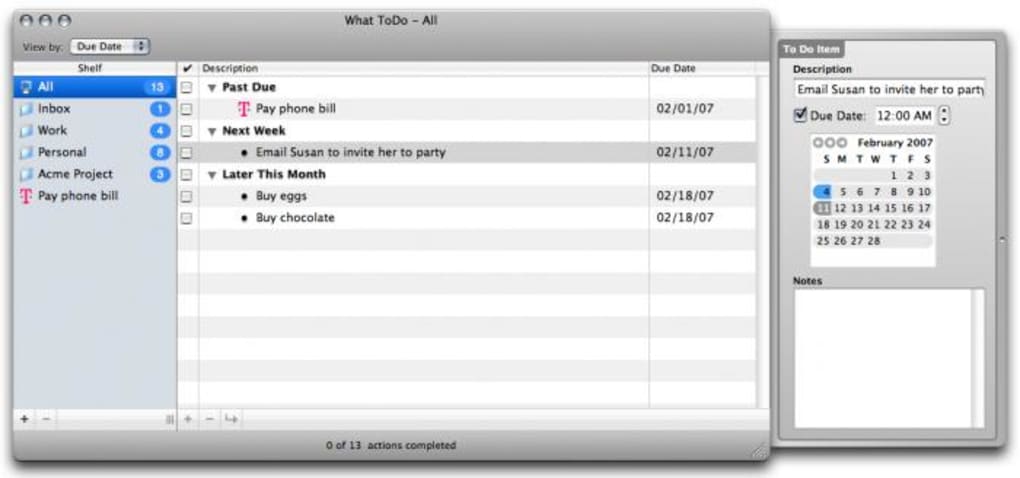
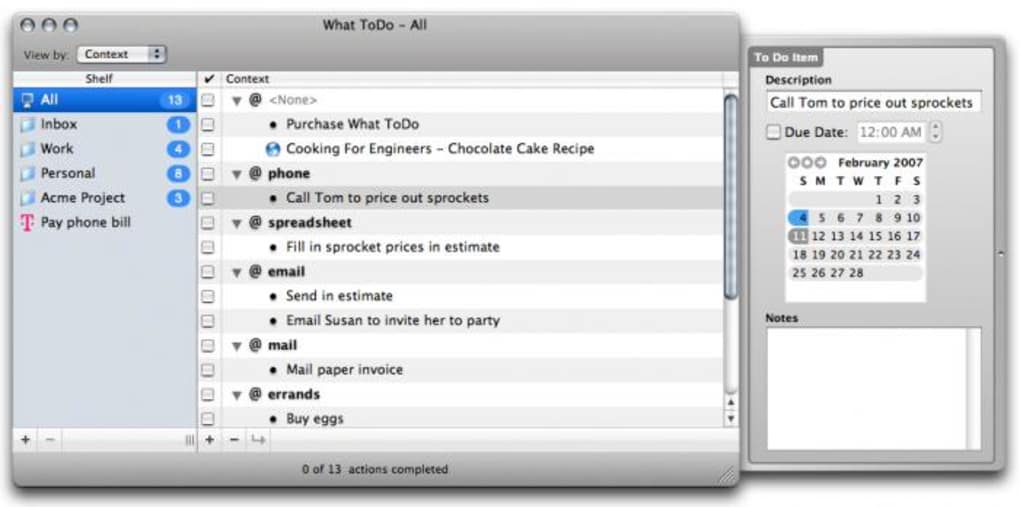
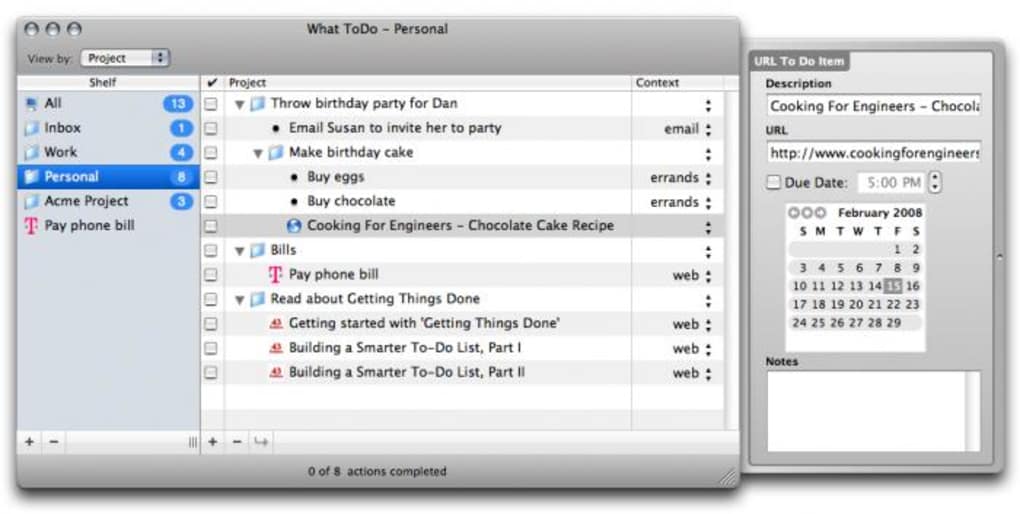
The application lives on the left‑hand side of the window, where you can create an unlimited number of project folders. Inside each folder, tasks are displayed in a collapsible tree view that lets you expand or hide subtasks as needed. Completion is as easy as ticking a checkbox, which automatically greys out the task to give you a visual cue of progress.
Although it lacks a built‑in search box and iCal integration, What ToDo shines in its simplicity, quick launch support through Quicksilver, and the ability to export your lists for backup or sharing. Whether you are a student planning assignments, a freelancer managing client work, or a busy professional tracking daily chores, What ToDo offers a free, secure, and straightforward way to keep your to‑do list under control.
Key Features That Make What ToDo Stand Out
- Folder‑Based Project Organization: Create unlimited project folders on the left pane, keeping personal and professional tasks neatly separated.
- Collapsible Tree View: Nested subtasks can be expanded or collapsed, giving you a clear hierarchy without clutter.
- Simple Completion System: Tick a checkbox to mark a task as done; the task automatically turns grey, providing instant visual feedback.
- Integrated Calendar Pane: Assign due dates using the built‑in calendar on the right side, so you never miss a deadline.
- Color & Bold Highlighting: Emphasize high‑priority items with custom colors and bold text for quick identification.
- Import/Export Flexibility: Export your lists to CSV or plain text and import them back at any time, ensuring data portability.
- Quicksilver Launcher Integration: Launch What ToDo directly from Quicksilver, speeding up access for power users.
- Free & Secure Download: The application is available at no cost and is signed with a trusted certificate to protect your system.
While the feature set is intentionally lean, each component has been crafted to reduce friction. The lack of a built‑in search function might seem limiting, but the folder hierarchy combined with color cues often makes locating tasks a breeze. Users who need deeper analytics can still export their data for analysis in spreadsheet software. Moreover, the clean UI consumes minimal system resources, making it an ideal choice for older Windows machines that struggle with heavyweight alternatives like Microsoft Planner or Asana. Overall, What ToDo delivers the core capabilities you expect from a task manager without the bloat that can distract you from actual work.
Installation, Usage Instructions, and Compatibility
Step‑by‑Step Installation Guide
1. Download the installer: Visit the official website and click the “Download for Windows” button. The file is a small .exe (approximately 5 MB) that begins downloading instantly.
2.
Run the installer: Double‑click the downloaded file. Windows Defender may prompt you to confirm that the app is safe; click “Run anyway” if you trust the source.
3. Follow the wizard: Accept the license agreement, choose an installation folder (the default location works for most users), and click “Install.”
4.
Launch the app: Once installation completes, tick “Launch What ToDo” and press “Finish.” The program opens to a welcome screen that displays a blank project list.
Getting Started with Your First Project
After launching, create a new folder by clicking the + Folder icon on the left pane. Name the folder (e.g., “Work Projects”) and press Enter. Inside the folder, add a task by clicking the + Task button, type the description, and hit Enter.
To add subtasks, select the main task, right‑click, and choose “Add Subtask.” Use the right‑hand calendar to set a due date: simply drag the date onto the task or double‑click the task and select a date from the pop‑up calendar. Highlight urgent items by clicking the color swatch next to the task and choosing a bright hue, then toggle the bold icon for extra emphasis. When a task is completed, tick its checkbox; the task fades to grey, instantly showing progress.
All changes are saved automatically, so there is no need to press a “Save” button.
Operating System Compatibility
What ToDo is built exclusively for Windows 7, 8, 8.1, and 10 (including 64‑bit versions). The installer detects the appropriate system architecture and places the executable in the correct Program Files folder. Although a macOS version is not currently offered, the software runs smoothly on Windows‑based virtual machines on macOS or Linux, providing cross‑platform flexibility for users who rely on remote desktops. Future updates may bring native macOS and Linux builds, but for now, Windows remains the primary supported platform.
Pros and Cons, Followed by Frequently Asked Questions
Pros
- Free to download and use, with no hidden subscription fees.
- Lightweight and fast; launches in under two seconds on most PCs.
- Intuitive folder‑based organization that scales with project complexity.
- Integrated calendar for due dates, eliminating the need for a separate app.
- Color‑coding and bold styling make priority management visual.
- Easy import/export ensures your data is never locked in.
- Quicksilver launcher integration speeds up access for power users.
Cons
- No built‑in search box, which can make locating tasks cumbersome in very large lists.
- Lacks iCal synchronization, limiting calendar integration for Apple users.
- No built‑in tutorial or onboarding wizard; new users may need to explore manually.
- Only available for Windows; no native macOS, Linux, Android, or iOS apps yet.
- Feature set is minimal; advanced users looking for Gantt charts or team collaboration will need another tool.
FAQ – Answers to Common Questions
Can I sync What ToDo across multiple devices?
Currently, What ToDo does not include built‑in cloud sync. However, you can manually export your task list from one device and import it on another to keep them in sync.
Is there a way to recover deleted tasks?
Deleted tasks are not sent to a recycle bin. To recover them, you’ll need to use a previously exported backup file.
Does What ToDo support keyboard shortcuts?
Yes. Common shortcuts include Ctrl+N for a new task, Ctrl+F to focus the calendar, and Ctrl+Shift+C to toggle color highlighting.
Can I integrate What ToDo with other productivity tools?
Integration is limited to Quicksilver launcher. For other tools, you can export tasks as CSV and import them into applications like Trello or Microsoft To Do.
Is there a mobile version of What ToDo?
At this time, no native Android or iOS apps exist. Mobile users can run the Windows version via remote desktop solutions.
What ToDo delivers exactly what its name promises – a straightforward way to capture and complete tasks. Its free price tag, quick launch integration, and visual priority cues make it a solid pick for individuals who dislike cluttered dashboards. While power users may crave more collaboration features, the application excels at personal productivity, especially on older Windows PCs.
Conclusion – Should You Download What ToDo?
If you’re looking for a free, secure, and ultra‑lightweight task manager that keeps the essentials front and center, What ToDo is an excellent choice. Its folder‑based layout, simple checkbox completion, and built‑in calendar address the core needs of daily planning without overwhelming you with features you’ll never use. Although the absence of a search function and iCal sync may be disappointing for some, the overall experience is smooth, reliable, and perfect for Windows users who value speed over collaboration. Download today, set up a couple of project folders, and see how quickly your to‑do list becomes a done‑list.







